April 2022
Quick Facts
- To change your password on MyMCL click the Using the Library drop-down, then Forgot my Password.
- Sign into MyMCL and then use My Settings to change email, username, holds pickup locaton, display language, borrowing history, privacy etc.
Procedure
Change display language | Change email | Change holds pick up location | Change password | Change username | Hold Note|Privacy|
Change Password on My MCL
- Click Services and Support.
-
Forgot my password
- Enter your library card number. The account must be current and contain an email address.
- Click Submit.
Change Holds Pick Up Location
- Login to MyMCL
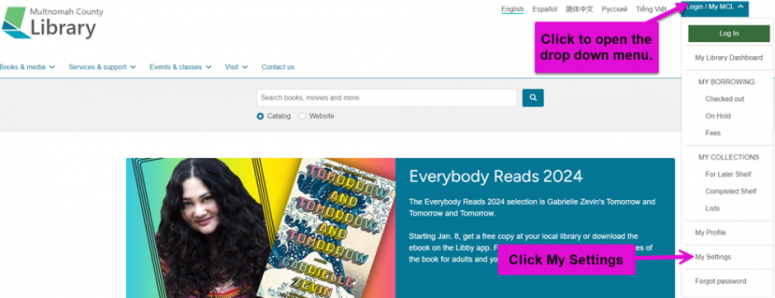
- Open the menu by clicking the drop down arrow in the red box located at the top right of the screen where the username is.
-
Click My Settings.
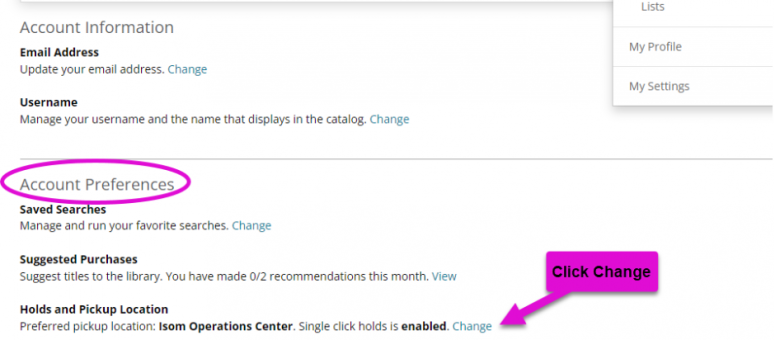
- Scroll down to Account Preferences, find Holds and Pickup Locations.
- Click the blue Change link.
-
Click the drop down under First and select the location. A patron can also select additional locations to have items sent to by selecting the green + add another location.
Add Private Hold Note
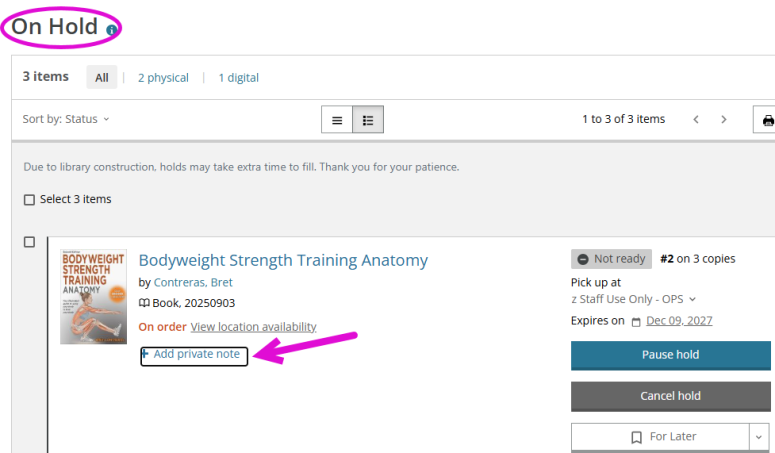
- Login into My MCL and click On Hold to see a list of your holds
-
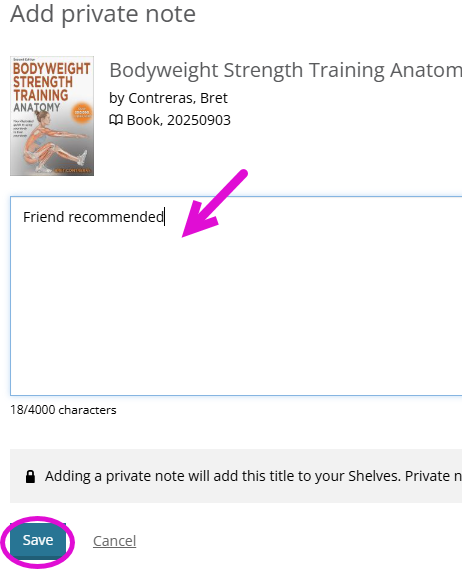
Find the hold you want to add a note to and click the add private note.
-
This feature can be used for any information, such as why the item was placed on hold (bookgroup, recommended by a friend, etc.).
-
These notes are private and will not be seen by any other users.
-
Patrons can edit and delete these notes at any time.
-
The note is only attached to the hold and will disappear when the hold is filled or canceled.
-
This feature is only available on the On Hold list at this time.
Change Email
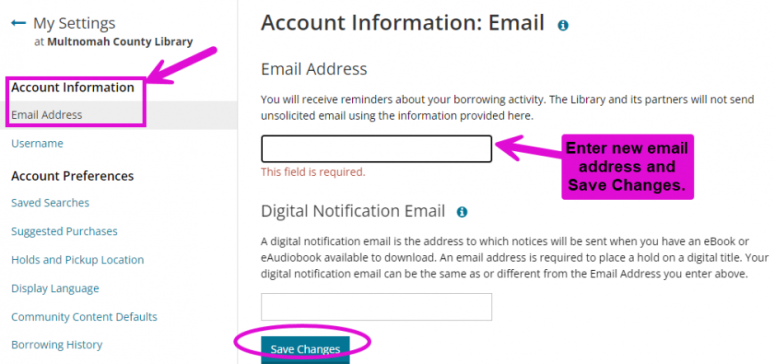
- Login into My MCL and select My Settings.
- Under Account Information, click Email Address.
- Change the email address by deleting the one listed and entering a new one.
-
Save changes.
Change Username
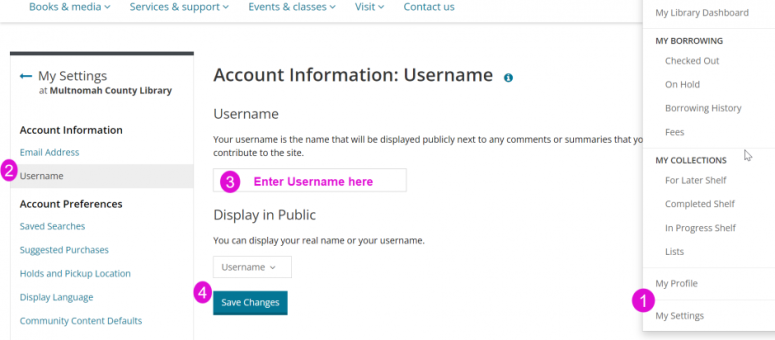
- Login into My MCL and select My Settings.
- Under Account Settings, click Username.
- Enter the new username in the box.
-
Save.
Change Display Language
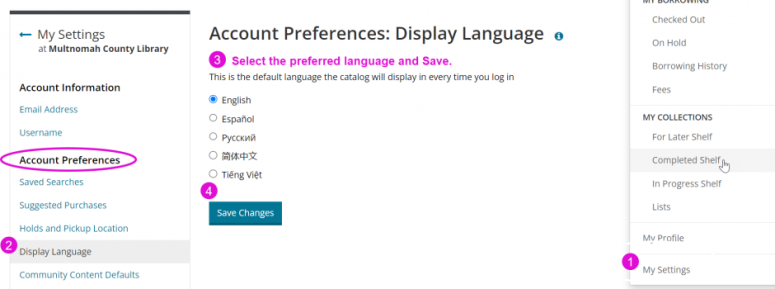
- Login into My MCL and select My Settings.
- Under Account Preferences select Display Language.
-
Save Changes.
Privacy
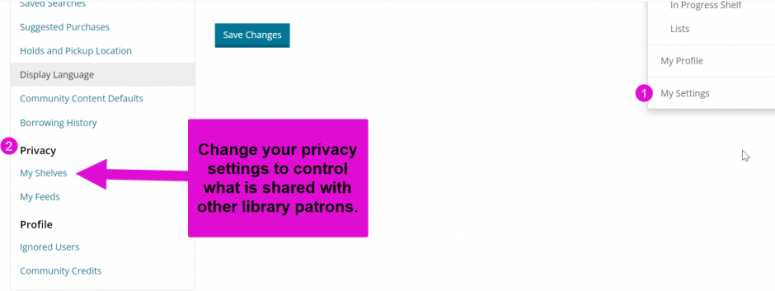
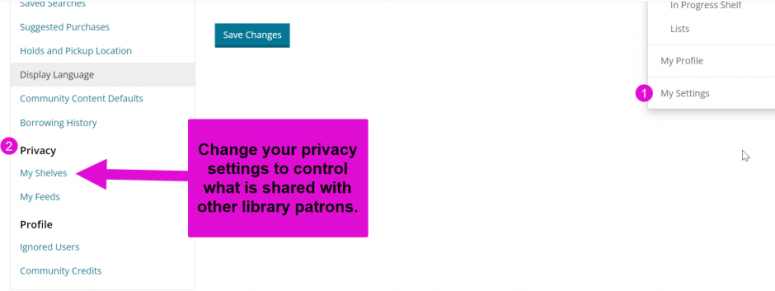
- Login into My MCL and go to Settings.
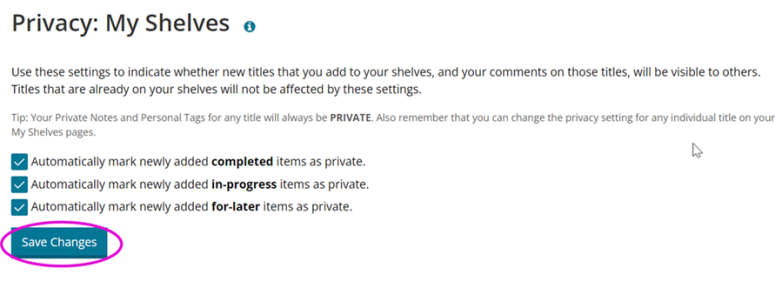
- Under Privacy select My Shelves to change the privacy settings for your completed, In-progress or for-later lists and Save Changes.
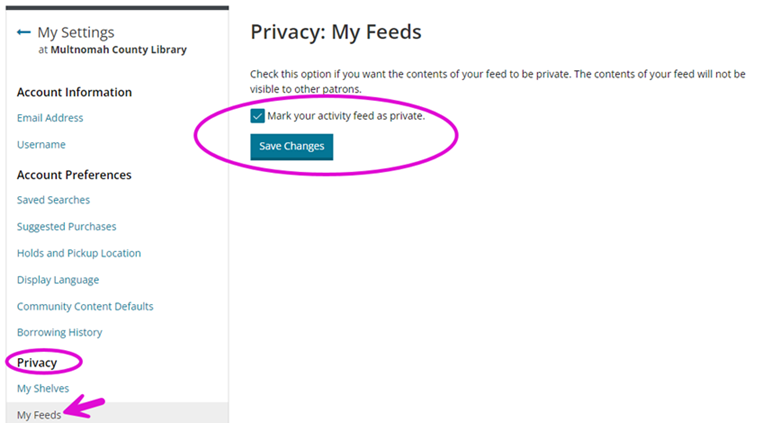
- Select My Feeds to change the privacy settings on your feed, Save Changes.